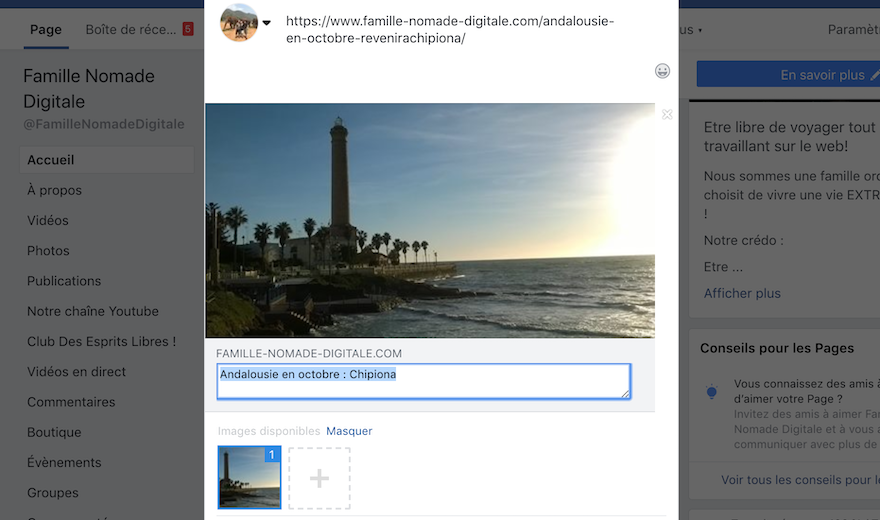
You paste your article link on Facebook but no image appears? Or maybe the platform shows an old photo, the wrong title, or a description that no longer matches your page?
A facebook link preview not appearing It can have several causes: a missing image, incorrect Open Graph information, an inaccessible page, or an older version cached by Facebook.
Before deleting your post or changing your entire site, run these checks in order. That will help you determine whether the issue is with the link, your WordPress page, or the data Facebook fetched.
When you share a URL, Facebook tries to read the page’s information to display a preview: usually an image, a title and sometimes a description. If these elements are missing or incorrect, the result may be different from what you expected.
The most common causes are:
The right solution depends on the symptom. If the image is outdated, start by checking what Facebook has already recorded. If no preview appears, first make sure the page is publicly accessible.
Paste your page URL into a new Facebook post and check the result before posting:
Once you've identified the issue, follow the steps below. After each fix, check the preview again before making any other changes.
Start by opening the link in a private browsing window. You can also ask someone who isn't logged into your site to open it.
The page should display the correct content without asking for login, a password, or any special validation. Also check that it doesn’t redirect to an error page or to another unexpected address.
If your WordPress post is still a draft or password-protected, Facebook may not be able to access the information needed to create the preview. Publish the page when you're ready, then run the test again.
On WordPress, the featured image is often used as the starting point for the share image. Its exact use, however, depends on the theme and the SEO plugin installed.
To check it:
If the preview remains incorrect, also check the social settings of your SEO plugin: a specific image for Facebook may be set there and override the featured image.
Tags Open Graph provide social platforms with information about the page to share. They can, for example, specify the title, description, URL and image to use.
The main things to check are:
These tags are found in the page's source code. On WordPress, an SEO plugin or the theme may generate them automatically. The names and locations of the settings depend on the tool you’re using.
If you already use an SEO plugin, look in the post settings for a section called Social media, Social or FacebookCheck the saved title, description and image, then update the page.
Meta provides a tool called Sharing DebuggerOr use the Sharing Debugger. It lets you view the information Facebook fetches for a URL and request a re-scrape of the page.
After this check, return to Facebook and try creating a new post with the same URL. The interface and labels may change; if an option doesn't appear, refer to the tool's instructions.
Your image may be visible in your WordPress dashboard without being properly accessible from the outside. This can happen if its URL is incorrect, the file has been moved, or a protection is blocking access.
For an initial test, copy the image URL and open it in a private window. It should display directly, without requiring a login to your site and without an error page.
If the image doesn't open, check its URL in the WordPress media library. You can also re-upload the file, select it in the post's social settings, and save your changes.
If the image opens for you but remains inaccessible to the debugger, a security system, firewall, or bot protection may be interfering. In that case, check the logs and security settings with your host or administrator.
An image that is too small, damaged, or poorly framed can produce a disappointing preview. Prepare a sharp image in a common format like JPG or PNG, and test how it displays before publishing.
For a horizontal visual intended for sharing, you can start with an image of 1,200 × 630 pixelsThis is a practical working format, not a guarantee that it will display identically on all devices.
Keep text and important elements away from the edges: Facebook may scale or crop the preview depending on where it appears. Also check that your image remains legible on a phone screen.
If you changed your article’s image or title, your site may still serve an old version of the page because of caching.
Depending on your setup, the cache may be managed by a WordPress plugin, your host, or an external service. Clear the cache for the affected page if that option is available, then check that the public source code contains the updated information.
Then go back to the Facebook Sharing Debugger and request a re-scrape of the URL. Clearing your site's cache and asking Facebook to re-scrape the page are two distinct actions: both can be useful after making a change.
If multiple plugins or your theme each generate their own Open Graph tags, Facebook may receive conflicting information. For example, one plugin might indicate a new image while another still points to the old one.
Open the source code of your public page and look for og:image or og:title. If you find several different values for the same property, identify which tool generates each one.
Don't disable all your plugins at random on a live site. Start by checking their social settings and, if necessary, ask your developer or your host to decide which solution should handle sharing information.
An old address can redirect to a new page. If the redirection is incorrect or the final URL doesn't match the expected one, the preview may show unexpected information.
Open the link in a private window and look at the address shown after the page loads. Make sure the visitor is taken to the intended page, then test that final address in the sharing debugger.
If you use parameters to track your campaigns, also make sure the URL with those parameters correctly leads to the right page. To understand their role, see our guide on UTM links and measuring social traffic.
Fixing a preview isn't just about making an image appear. The visual should also help users quickly understand the page's topic.
Before publishing, check the following:
A clear image can make a post easier to understand, but it alone doesn't guarantee more clicks. The post copy, the topic, and your audience's interest also matter.
If you replaced your image but Facebook still shows the old one, follow these steps in order:
If the debugger shows the correct image but an old post still retains its previous preview, don't assume all existing posts will be updated automatically. Check the result on the affected post and, if necessary, create a new post.
A clean preview helps users understand what they'll find after clicking. But traffic also depends on the topic, the quality of the text, your audience and the relevance of the shared page.
Instead of posting just "New post available", explain the problem it solves. For example:
Your image doesn't appear when you share a link on Facebook? Here are the checks to run on your WordPress page and in the Sharing Debugger.
Then choose a time that suits your audience and compare the results of several posts. To organize your tests, check out our article on the best times to post on social media.
If your posts reach only a few people despite a correct preview, also see our guide on drop in social media reach.
Sharing an article requires several small checks: URL, accompanying text, image, publication date, and tracking results. Regular organization prevents having to redo these checks at the last minute.
With AuraPost, you can prepare your social media messaging and schedule your posts. Before publishing, take the time to check the preview and the options available for the network and account used.
Discover our method for repurpose content across multiple social networks without simply copying and pasting.
The shared image may be missing, inaccessible, or incorrectly set in the Open Graph tags. Start by checking your post's settings and testing its URL in the Facebook Sharing Debugger.
Facebook or your site may still be using information fetched before your change. First check the new image on the page, clear the site cache if necessary, then request a new scrape of the URL in the debugger.
Not necessarily. Depending on your theme and SEO plugin, an image set specifically for social networks may be used instead. Check the post's social settings and the value of the og:image tag.
First check the existing post: its preview may not change as you expect. A new post lets you control the outcome with the current information, but it does not preserve the interactions from the old one.
You can test its URL in the Sharing Debugger, but changing the page tags and the site's image is usually up to the site owner. If the page information is incorrect, contact the person who manages the site.
Start by checking that your page and its image are publicly accessible. Then check the Open Graph information—especially the title and image—and use the Facebook Sharing Debugger to inspect the URL.
If you've just edited your post, consider your site's cache before asking Facebook to re-scrape the page. Once the preview is correct, pair your link with text that clearly explains what the reader will find.