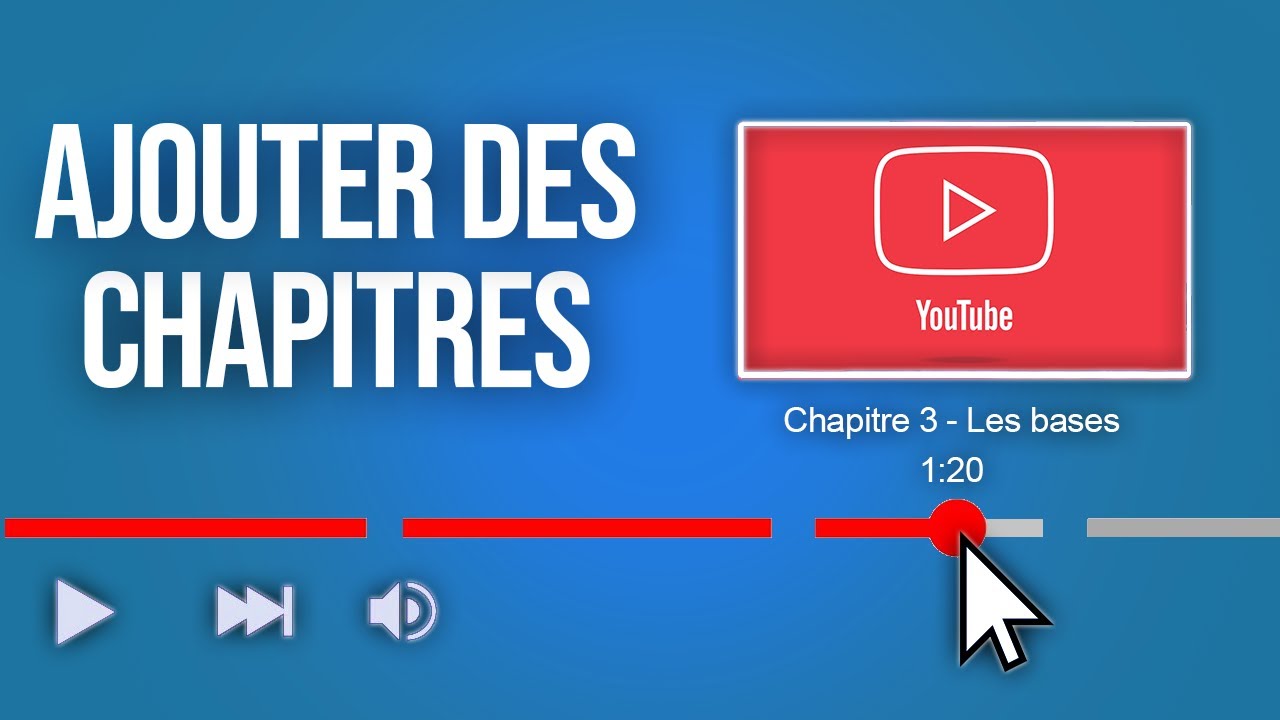
Did you publish a tutorial, an interview, or a presentation on YouTube and want to help your viewers quickly find the part they care about? YouTube chapters let you split a video into multiple sections, each with a title and a specific timestamp.
To add your own chapters, simply place a list of timestamps in your video’s description. But for YouTube to recognize them, certain conditions must be met: start with 00:00, list at least three timestamps in order and assign a minimum duration to each chapter.
In this guide, learn how to create YouTube chapters step by step, how to choose their titles, and what to do if they don't appear.
A YouTube chapter is a section of a video associated with a title and a timestamp. It helps the viewer identify the different stages of content and jump directly to the one they want to watch.
For example, a video about creating a Facebook page can include chapters for choosing the name, adding a photo, setting up the information, and the first post.
When chapters are recognized, they can appear in the video's progress bar and description. Viewers can then locate a particular segment more easily without having to scrub through the entire video.
There are two main ways to add chapters:
If you add manual chapters, they replace the video's automatic chapters.
Chapters are useful when your video covers several steps or answers several questions. They give the viewer an overview and help them return to a specific part.
They can be used for:
For a business or a creator, it’s also a way to make a video easier to use. However, adding chapters doesn’t guarantee more views: the title, the topic, the quality of the content, and your audience’s expectations still matter.
Before editing your description, check YouTube's requirements for manual chapters:
If chapters aren’t yet available for your channel, YouTube states you may need to request access to advanced features. Some restrictions may also prevent them from appearing.
You can view the updated rules in theOfficial YouTube help on video chapters.
The simplest method is to use YouTube Studio. First prepare the moments you want to highlight, then follow the steps below.
Sign in to the account that manages your channel, then open YouTube Studio.
If you have multiple channels, make sure you've selected the one that contains the video. This will save you from looking for your content in the wrong place.
In the left-hand menu, click on Content. Then find the relevant video and open its details by clicking its title or the edit option.
You can add chapters to an already published video: you don’t need to delete the video or upload it again.
In the field Description, enter the timestamps followed by the title of each chapter. Start at 00:00, then add the other parts in order.
Here is an example for an imaginary video of 7 minutes and 30 seconds :
00:00 Introduction
00:35 Create your YouTube channel
02:10 Choose the name and photo
04:05 Add a description
06:20 Prepare your first video
In this example, the last chapter starts at 06:20 and ends at the end of the video, at 07:30. Its duration is therefore longer than the 10-second minimum.
Adjust the timings to your own video. Do not copy the timecodes from this example without checking when each topic actually starts.
Click on Save, then open the video on its YouTube page. Check its description and progress bar to see if sections appear.
Test several timestamps: each should lead to the correct segment. If a step starts too early or too late, go back to YouTube Studio and adjust the corresponding timestamp.
A chapter title should help viewers immediately understand what they’ll find in the section. Favor short, precise wording that matches what is actually shown in the video.
For example, in a video about creating an editorial calendar, 'Choosing your posting topics' is more useful than a vague title like 'Part 3'.
You can use different types of titles:
Use words your audience understands and naturally searches for. Avoid repeating the same keyword in every title or promising content that isn’t included in the chapter.
The examples below are templates. The timings should be adjusted to the length and content of your own video.
00:00 What you'll learn
00:30 What you need
01:15 Open settings
03:20 Configure options
05:40 Check the result
This format is suitable for a tool demonstration, a phone walkthrough, or a setup guide. Each chapter corresponds to a distinct, identifiable action.
00:00 Guest introduction
01:10 Their journey
04:30 Challenges encountered
09:15 Tips for getting started
13:20 Upcoming projects
For an interview, consider listing the topics covered rather than just repeating 'Question 1' or 'Question 2'.
00:00 Introduction
00:40 Who is this service for?
01:35 Demonstration
04:15 Frequently Asked Questions
06:10 How to learn more?
If you also use short videos to showcase your business, discover how to add an associated video to a YouTube Short to direct viewers to supplementary content.
You’ve added your timestamps but the progress bar doesn’t seem divided into chapters? Start by checking your list and your channel settings.
To create manual chapters, the first timestamp in the list must start at the beginning of the video. For example, replace an initial time of 00:15 with 00:00, then give it a title like 'Introduction'.
You can then keep 00:15 as the second chapter if the gap to the next chapter also meets the minimum duration.
A list containing only two timestamps does not meet YouTube's requirement. Add at least a third relevant timestamp, in chronological order.
Don’t artificially create too many sections: choose parts that actually help the viewer navigate.
Check the gap between each timestamp. If one chapter starts at 01:00 and the next at 01:07, the first only lasts seven seconds.
Also check the last chapter: there must be at least 10 seconds between its start and the end of the video. Adjust the timings to match your video’s actual content.
Timestamps must follow the video's progression. A list that goes from 03:20 to 02:10 must be corrected: place 02:10 before 03:20 and check that each title matches the correct segment.
If your list looks correct, check your channel's eligibility for advanced features in YouTube Studio settings.
YouTube also notes that active channel strikes or certain potentially inappropriate content may prevent the use of chapters. Check the information shown in your account and the official Help Center to determine which situation applies.
Make sure you've saved the changes to the correct video and channel. Then reload the watch page and check the description displayed.
If you use multiple devices, you can also check the result on another browser or device. If the problem persists despite a compliant list and an eligible channel, consult YouTube Help.
YouTube may offer automatic chapters on some videos. This option is useful if you want the platform to identify the different parts of your content, but automatic chapters aren’t guaranteed for all eligible videos.
To check the option on a video:
If you prefer to precisely choose the titles and times shown, add your own timestamps in the description. Your manual chapters will then replace the automatic chapters.
Chapters can make your video easier to navigate and clarify the topics covered. However, they are not a magic formula for appearing at the top of YouTube or Google.
To create a useful, easy-to-understand video, work on the overall presentation:
Once your video is published, you can also highlight a note beneath it. Discover how to pin a comment on YouTube.
A video divided into chapters can also help you spot ideas for other posts. Each section can serve as a starting point to answer a specific question on your social channels.
For example, if you publish a ten-minute tutorial on creating a Facebook page, a chapter on the profile photo can become a short demonstration. Another section covering the description could inspire a post with practical tips.
Tailor the message and format to each platform—don’t assume the same clip will work everywhere. To dive deeper into this approach, see our guide to repurpose content across multiple social networks.
A YouTube video can fit into a broader communications calendar: an announcement before release, showcasing a clip, answering audience questions, or sharing complementary content.
AuraPost supports businesses, creators, and professionals who want to organize their communication on social media. You can prepare your ideas and plan the posts that will accompany each video, taking into account the integrations available for your accounts and formats.
Do you want to structure your presence on social media? Contact AuraPost to present your project.
For manual chapters, YouTube requires at least three timestamps in the description. The first must start at 00:00 and each chapter must last at least 10 seconds.
Yes. Open the video in YouTube Studio, edit its description to add the timestamps, then save. You don’t need to republish the video.
Make sure your list starts at 00:00, contains at least three timestamps in order, and that each chapter is at least 10 seconds long. Also check your channel's eligibility and any restrictions shown by YouTube.
Yes. If you add a compliant manual chapter list in the description, YouTube indicates it replaces the video's automatic chapters.
Yes. Go back to your video’s description in YouTube Studio, edit the relevant titles or timestamps, then save. Be sure to check that the new titles still match the labeled segments.
Chapters can help viewers navigate and understand the structure of a video. However, their presence does not guarantee a better ranking in search results or an increase in views.
To add chapters to a YouTube video, open its details in YouTube Studio and enter your timestamps in its description. Start by 00:00, add at least three timestamps in order and make sure each chapter is at least 10 seconds long.
Then choose clear titles, review the sections after recording, and adapt your chapters to the questions your viewers are actually asking.
To organize your upcoming posts and grow your social media presence, discover AuraPost and its content management solutions.