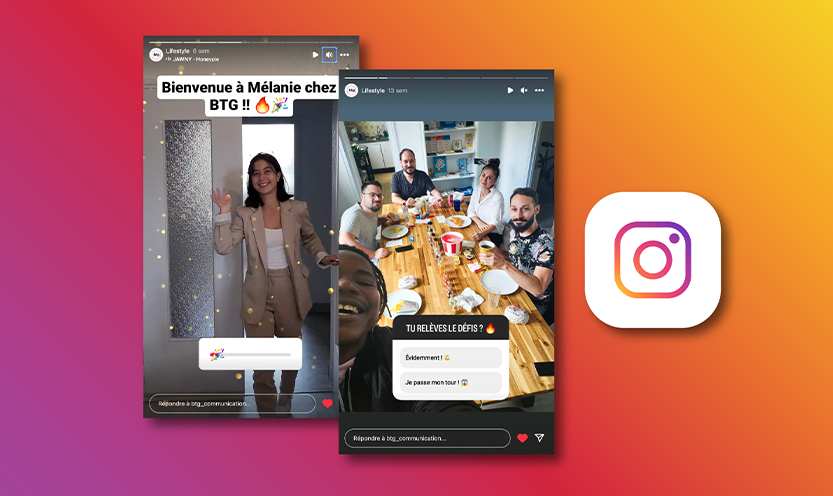
Someone discovers your business on Instagram via a Reel or a post. They open your profile, read your bio, then quickly try to understand what you offer. What are your services? How can they contact you? Is your offering right for them?
The Instagram Highlights they let you gather useful information directly on your profile. A business can use them to present its services, answer frequently asked questions, or explain how to get in touch.
In this guide, learn how to create a Story Highlight, which sections to choose for your business, and how to keep them up to date. You'll also find examples you can adapt to your business.
A Story Highlight is a collection of Stories you choose to keep on your profile. While a regular Story usually disappears after 24 hours, a Story added to a Highlight can remain accessible on your account for longer.
You can group multiple Stories under the same theme. For example, a service company could create a dedicated section. Services to present its services, then a section Contact to explain how to write to them.
Each group has a name and a cover image. Depending on changes to the app, their placement and presentation on the profile may vary. Always check the result on your own account and on a phone.
The visibility of Story Highlights depends in particular on your account's privacy settings and any restrictions applied to your Stories. Before sharing information, make sure it’s intended for the people who are likely to see it.
A visitor arriving at your profile for the first time may not know what you do. Story Highlights can help them quickly find key answers without having to browse through all your past posts.
They can be used to:
These sections supplement your bio. They don't by themselves guarantee more followers or sales: their purpose is to make your profile clearer and to make it easier for visitors to take the next action.
To prepare a coherent presentation from the moment someone lands on your profile, also check our guide on the professional Instagram bio, with examples and templates.
You can usually create a Story Highlight from a published Story or from the Stories saved in your archive. Button names and the order of steps may vary depending on your version of Instagram and your device.
If you can’t find the button, make sure the app is up to date and explore the options shown on your Story. The interface can differ from one account to another.
If your past Stories have been saved in your account archives, you can usually add them to a Highlight after they disappear from the active Story.
You can also find an option New or + in the Highlights section of your profile. Instagram will then let you select the Stories available in your archive.
If an older Story doesn't appear, check that archiving was enabled and that the content is still available in your account. A Story that's not in the archive can't be added from there.
The best sections are those that answer your visitors' questions. Before choosing headings, list the requests you regularly receive: "What do you offer?", "How do I book?" or "What area do you serve?"
Here are eight featured Story ideas you can adapt to your business.
This section lets you quickly explain who you are, who you serve, and what you offer. It's especially useful if your account is new or if your brand name doesn't describe your activity.
Example sequence:
Use real, easily verifiable information. If your business is just starting, you can say so plainly instead of inventing a number of customers or results.
A featured Story about your services should let visitors quickly understand what they can ask you for.
Describe each service in plain language. Specify, where helpful, who it's for, what it includes, and how to get more information.
Example: 'Looking for help preparing your posts? Discover our solutions to organize your calendar and schedule your content.' Always adapt this sentence to the features and services that are actually available.
If you have several very different offers, create separate sections only if that actually helps visitors find what they're looking for.
An offer can seem complicated when a visitor doesn't know the steps. A section explaining how it works can remove that hesitation.
Present one step per Story, for example:
This sequence is only a template. Replace it with the exact steps of your service and specify the important conditions before any registration or booking.
The FAQ section can group the questions you most often receive in comments, by email, or in private messages.
Examples of questions to adapt:
One question per Story makes reading easier. For a detailed answer or for conditions that may change, direct the visitor to an up-to-date page rather than summarizing everything in an image.
Testimonials can help a visitor understand other customers' experiences. Use only authentic reviews and ensure you have the necessary permissions before publishing someone's name, photo, or message.
If you hide personal information, make sure no identifiable details remain visible in the screenshot. Preserve the meaning of the testimonial: a quote taken out of context can give a misleading impression.
Has your business just started and you don't have any reviews yet? You can wait to receive some and, in the meantime, use an “About” or “How it works” section to present concrete information.
A craftsman, graphic designer, agency, or shop can use this section to showcase projects, products, or creations.
For each project, add a brief context: the initial need, what was delivered, and, if relevant, the date or location. Check permissions before showing a person, a home, a client logo, or confidential information.
A clear example is better than a pile of images without explanation. The visitor should understand what they’re looking at and how it relates to your business.
This section can showcase your team, your workshop, an order being prepared, or the steps involved in creating a service.
It’s also suitable for startups: you can show the preparations, explain what you’re building, and introduce the people involved, provided you don’t announce features or services as available before they actually are.
An interested person should be able to understand how to contact you. Depending on your business, this section may indicate:
Regularly check that the link works and that contact details remain up to date. A Story Highlight kept for a long time can continue to display an old number or an expired offer.
Choose short titles that your audience understands immediately. On a small screen, a title that's too long can be hard to read or may appear truncated.
| Purpose of the section | Title examples |
|---|---|
| Introduce the company | About, Our team |
| Explain an offer | Services, Products, Offers |
| Answer questions | FAQ, Questions |
| Provide feedback | Reviews, Testimonials |
| Show your work | Projects, Portfolio |
| Make it easy to get in touch | Contact, Book |
You don't need to create all of these sections. Start with the ones that answer the three or four questions most important to your audience, then complete your profile once you have useful content.
The cover is the image that represents your section. It can use an image from the Story or a visual prepared for your brand, depending on the options available on Instagram.
To create a readable cover:
An attractive cover catches the eye, but the title and content must remain clear. For example, a speech bubble icon accompanied by the title 'Reviews' will be easier to identify than a decorative symbol with no explanation.
To update a section, open it from your profile and then look for its menu. More or the option Edit. Depending on your version of the app, a long press on the section may also show the available actions.
You can generally change the name or cover, add available Stories and remove those that are no longer relevant. To delete an entire section, make sure you check the action shown before confirming.
Menus may change. After making edits, open the section and go through all the Stories to check the order, texts, and visible information.
There’s no fixed frequency. The right timing depends mainly on your business: a restaurant menu may change frequently, while a company presentation can remain valid much longer.
Check whenever something important changes, for example:
You can add a reminder to your editorial calendar to review these sections regularly. Our guide explains how to organize a 30-day editorial calendar.
Imagine a company that wants to help its visitors understand its offering and contact it. It can start with four sections:
If the company later receives testimonials it is authorized to share, it can create a section. Reviews. If their offer changes, they update the section Services to avoid keeping outdated information.
This format is also suitable for a business that's launching: it lets you clearly present what's already in place and outline next steps without promising unverified results.
Story highlights work best when they complement the rest of your profile. Someone might discover a post, read your bio, check a section, and then choose to contact you.
To create a consistent journey:
To learn more about this process, see our article on turning Instagram followers into customers.
You can also prepare several Stories from a customer question, a tutorial, or an existing article. Our guide on how to repurpose content across multiple social networks gives ideas for adapting the same topic to multiple formats.
Creating Story Highlights first requires preparing the topics, copy, visuals, and publication dates. AuraPost can help you centralize your content and organize your calendar for connected social networks, depending on available integrations.
Before scheduling content, check the formats and features supported for your account. Adding a Story to a Highlight may require action directly in Instagram: check the options available in your app.
After publishing, also take the time to answer any questions received. If someone expresses dissatisfaction, our guide offers examples for responding to a negative comment.
A regular Story typically disappears after 24 hours. When added to a Highlight, it can remain accessible from your profile as long as you keep it and depending on your account's visibility settings.
Yes, if this Story is available in your archives and your account supports adding it. If it wasn't saved or was deleted, it may no longer be available for this operation.
There’s no ideal number for every account. Start with the sections that answer your visitors’ main questions, then add more only if new content is genuinely useful.
Instagram generally offers an option to edit the cover of a highlight. Open the highlight or its edit menu, then check the options shown in your version of the app.
Introduce your business, your audience, how the service works, and how to contact you. If you don't yet have testimonials or client results, focus on concrete, verifiable information.
Instagram Highlights can help a business showcase what it does and answer visitors' questions. To start, choose a few clear sections: about, services, frequently asked questions, and contact.
Create short content, check your links, and update information when your offer changes. To organize your upcoming posts and keep an eye on your calendar, check out AuraPost.